Determine whether the problem is one PC or the whole network
The Wi-Fi icon confirms a wireless link to the router, not necessarily internet access. On a second phone or laptop, connect to the same Wi-Fi network and open two different websites. If every device fails, focus on the router, modem or internet provider. If only one Windows PC fails, focus on the PC. Also distinguish a single broken website from a network outage by trying a second trusted destination. This simple comparison prevents unnecessary driver changes and repeated router resets.
Restart in the least disruptive order
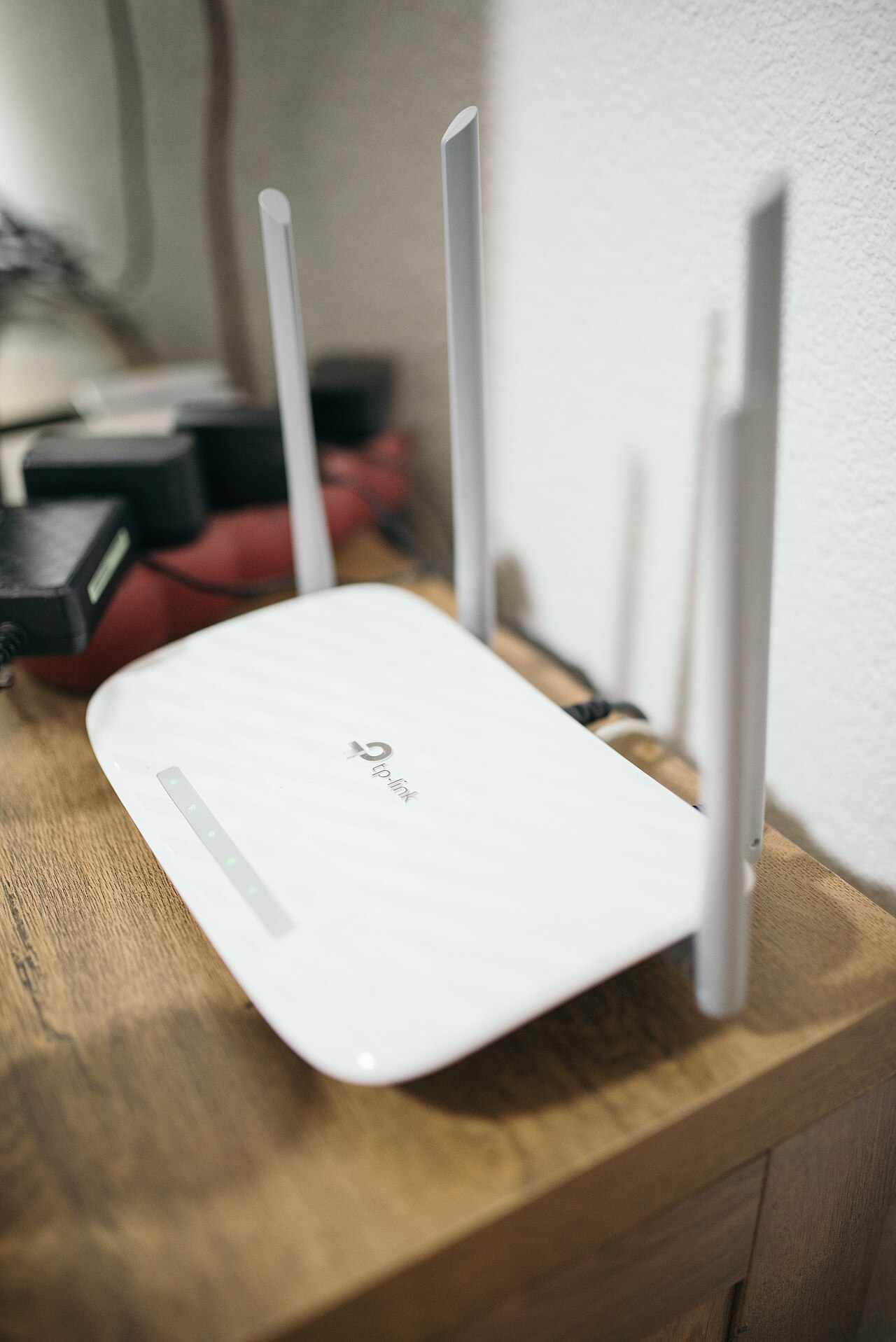
Turn Wi-Fi off and back on on the affected PC, then reconnect to the correct network. Restart the computer. If the whole household has no internet, check provider outage notices using mobile data and inspect the modem or router status lights according to its manual. Restart network equipment if allowed by the provider; do not press the factory reset button, because it may erase your configuration. After equipment restarts, give it time to reconnect to the service before testing again.
Check IP address and DHCP information
Open Settings → Network & internet to confirm you joined the intended Wi-Fi. In a Windows terminal, use ipconfig to check that the wireless adapter has an IPv4 address and default gateway. An automatically assigned 169.254.x.x address often indicates that the device could not obtain a normal address from DHCP. That can point to a local network or router issue. Do not copy someone else's static IP or DNS configuration blindly: those values vary by network and may create conflicting addresses.
Look for DNS or application-specific faults
If the computer can reach the router but domain names fail, DNS may be involved; captive portals, VPNs and proxy settings can also interfere. Microsoft documents using the network troubleshooter and, for suitable cases, ipconfig /flushdns to clear cached DNS information. First check whether a VPN, browser extension or manually configured proxy has changed the connection. If your public Wi-Fi requires a sign-in page, use its official portal. Avoid downloading unknown network-repair software or disabling security tools just to make a website load.
Leave driver reinstalls and network reset until last
In Windows 11 try the built-in Get Help network troubleshooter; Windows 10 has its own Network troubleshooter in Settings. Update an adapter driver only from Microsoft or the computer manufacturer. Uninstalling network devices or using Network reset can remove saved Wi-Fi, VPN and virtual-adapter settings; Microsoft describes reset as a last resort. If you depend on a VPN for work or have a custom configuration, record those settings and get administrator help before changing them. Also remember Windows 10 standard support ended in October 2025.
Keep a short troubleshooting record
Write down which devices fail, when the issue began, the router status lights and the result of the restart. This helps an ISP or technician distinguish a service outage from a failing router, weak signal or a Windows misconfiguration. If the connection drops mainly in one room, see MURDILIMAX's /guides/wifi-router-placement/ for safe placement advice; for basic speed issues, see /guides/wifi-speed/. An intermittent connection and a completely unavailable internet service require different solutions.
Information for general education. Check device specifications and manufacturer instructions before changing hardware.
Share this article