Identify which connection actually drops
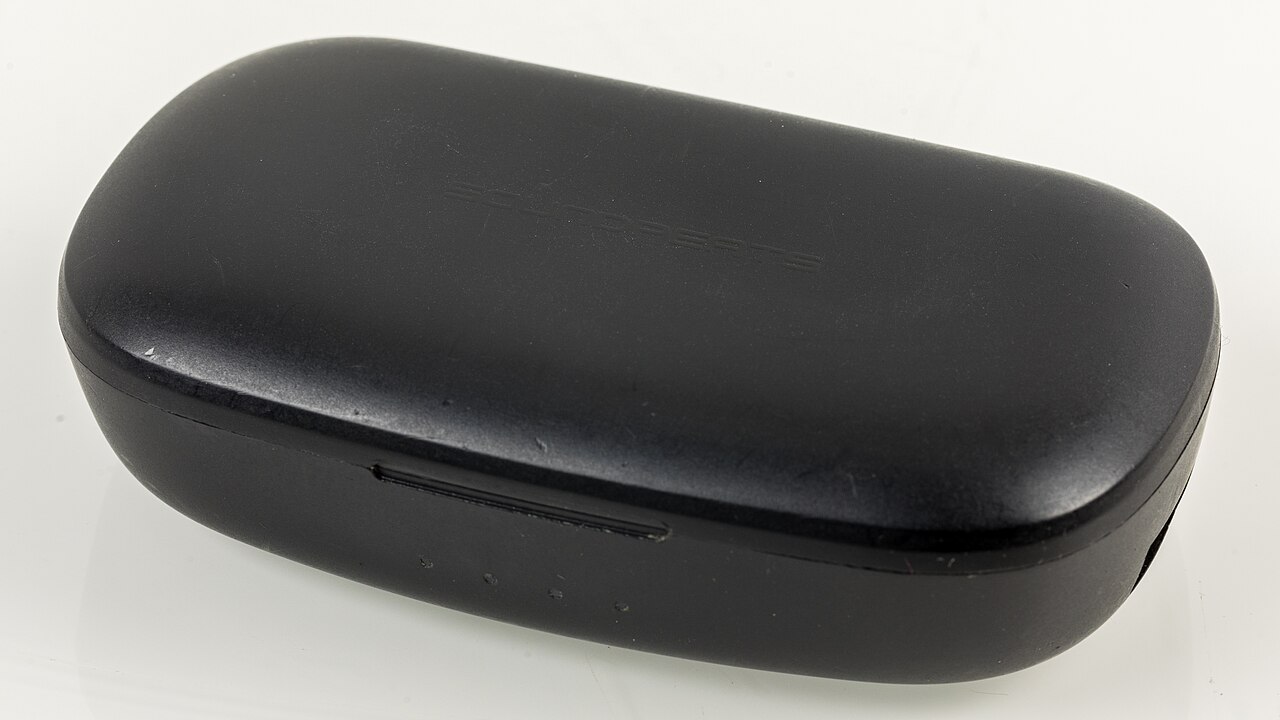
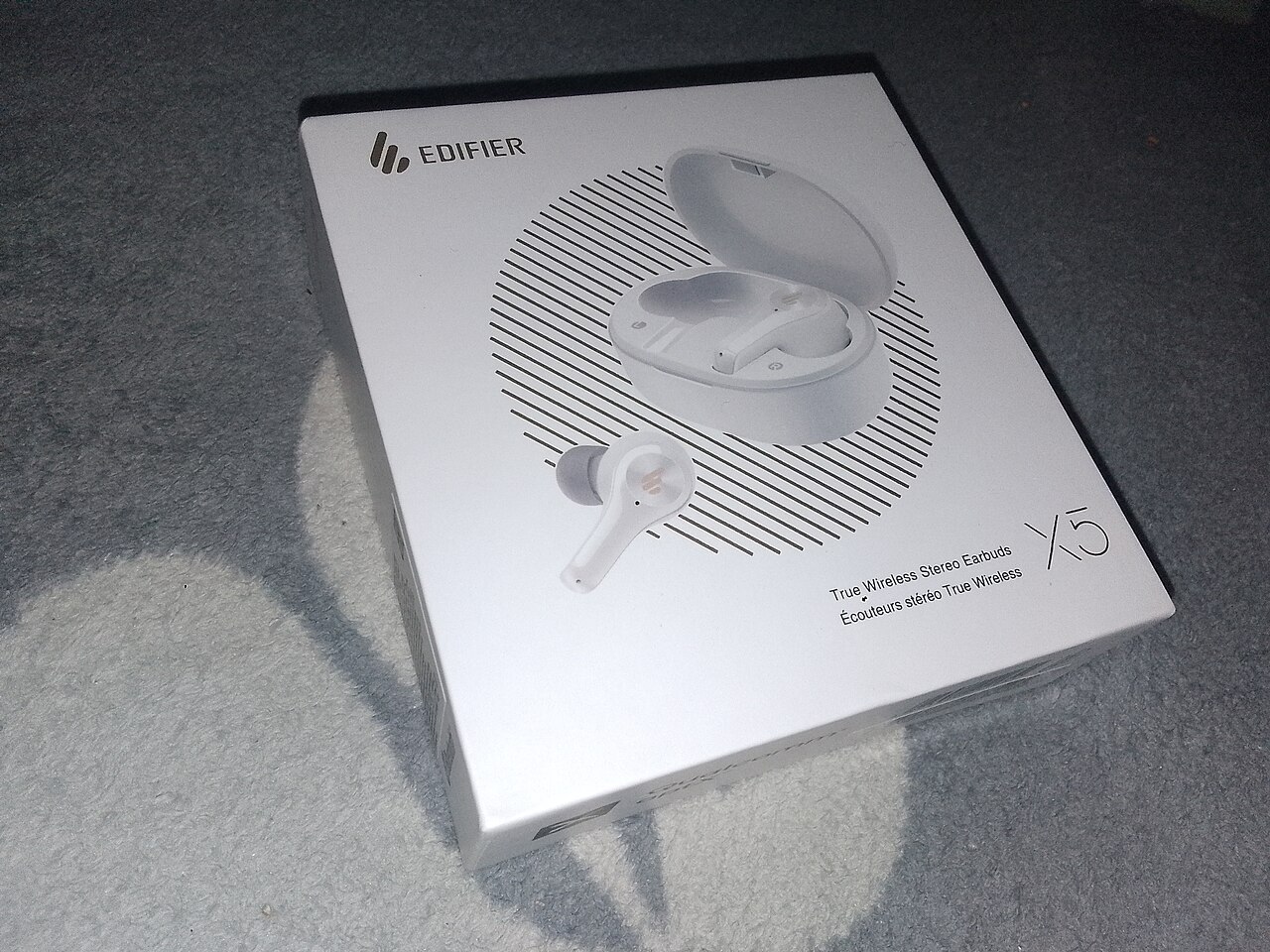
If the headphones disappear from Bluetooth settings, the wireless connection itself has dropped. If they remain connected but sound stops, the problem may instead be the audio-output selection or an app switching to call mode. Test another Bluetooth headset or mouse on the same computer, and try the problem device on a phone. This simple comparison shows whether the issue follows the accessory or stays with Windows. Write down when the interruption occurs: while charging, after sleep, in a crowded room or only during video meetings.
Check battery, distance and nearby interference
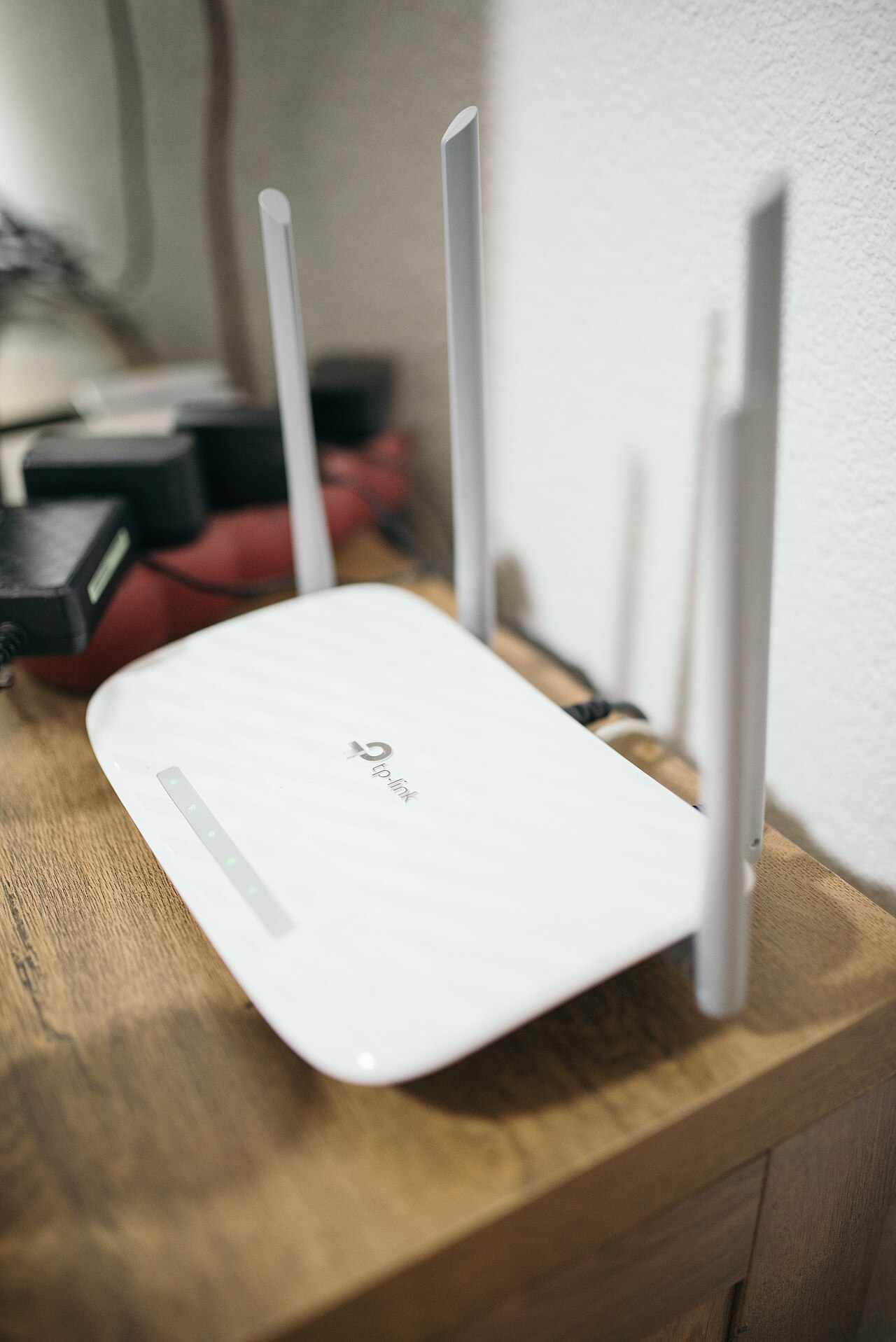
Recharge the accessory fully and use it close to the computer for one test. Many Bluetooth peripherals limit transmission when their battery is low, although behavior varies by device. Nearby Wi-Fi routers, USB 3 accessories and crowded wireless environments can contribute to interference, especially in the 2.4 GHz band. Move a USB wireless adapter away from other ports with a short extension only if the manufacturer allows it. Avoid placing the device directly behind a metal desktop PC case or behind thick walls.
Disconnect competing devices and pair again
Some headphones support multipoint pairing and can switch between a phone and laptop. Others allow only one active audio connection. Temporarily disable Bluetooth on the phone, then test whether the laptop connection stabilizes. If you still see repeated dropouts, remove the accessory from the Windows Bluetooth devices list, restart both devices and pair it again using the manufacturer's instructions. This deletes that pairing, not the computer's entire networking setup. Confirm that the headset is actually in pairing mode rather than merely powered on.
Review Windows power saving settings
Microsoft lists energy-saving behavior among common causes of repeated Bluetooth disconnections. Check whether Battery Saver or Energy Saver is active. Open Device Manager, expand Bluetooth, select the adapter's Properties and look for a Power Management tab if your driver provides one. On supported hardware, disabling 'Allow the computer to turn off this device to save power' can help; record the original setting first. Not every adapter exposes this option. Avoid randomly editing the registry or turning off all Windows security settings.
Use Microsoft's troubleshooting and official drivers
On Windows 11, run the Bluetooth troubleshooter through the Get Help app. You can also restart the Bluetooth Support Service through services.msc if the official instructions call for it. If disconnections continue, check Bluetooth driver updates in Device Manager and on the PC manufacturer's website. A laptop may use an Intel, Realtek or other Bluetooth adapter with model-specific drivers; downloading an unrelated driver pack can make matters worse. Microsoft ended normal Windows 10 support on October 14, 2025, so unsupported systems should have an upgrade or supported security plan.
When to suspect hardware and what to read next
A headset that disconnects from several phones and computers may have an internal battery or radio fault. Several devices failing only on one PC point instead to the adapter, firmware, antenna or local interference. Do not dismantle lithium-battery accessories that swell or overheat. Contact the manufacturer's support and note the exact model and adapter identifier. If the accessory stays connected but is silent, use the separate guide /guides/bluetooth-headphones-connected-no-sound-windows/. For a weak wireless network, see /guides/wifi-router-placement/; Bluetooth and Wi-Fi are different connections.
Information for general education. Check device specifications and manufacturer instructions before changing hardware.
Share this article