Check the selected output first
A Bluetooth connection means Windows can communicate with the headset; it does not guarantee that audio is being sent there. Play a short video, click the speaker icon and select the headphones as the output device. In Windows 10 open Settings, System, Sound and choose the device under Output. In Windows 11 use Settings, System, Sound and check Output. Make sure the computer and the headset are not muted. If a program has its own audio-output setting, check that too. Test with a second program before changing system settings.
Separate a pairing problem from an audio problem
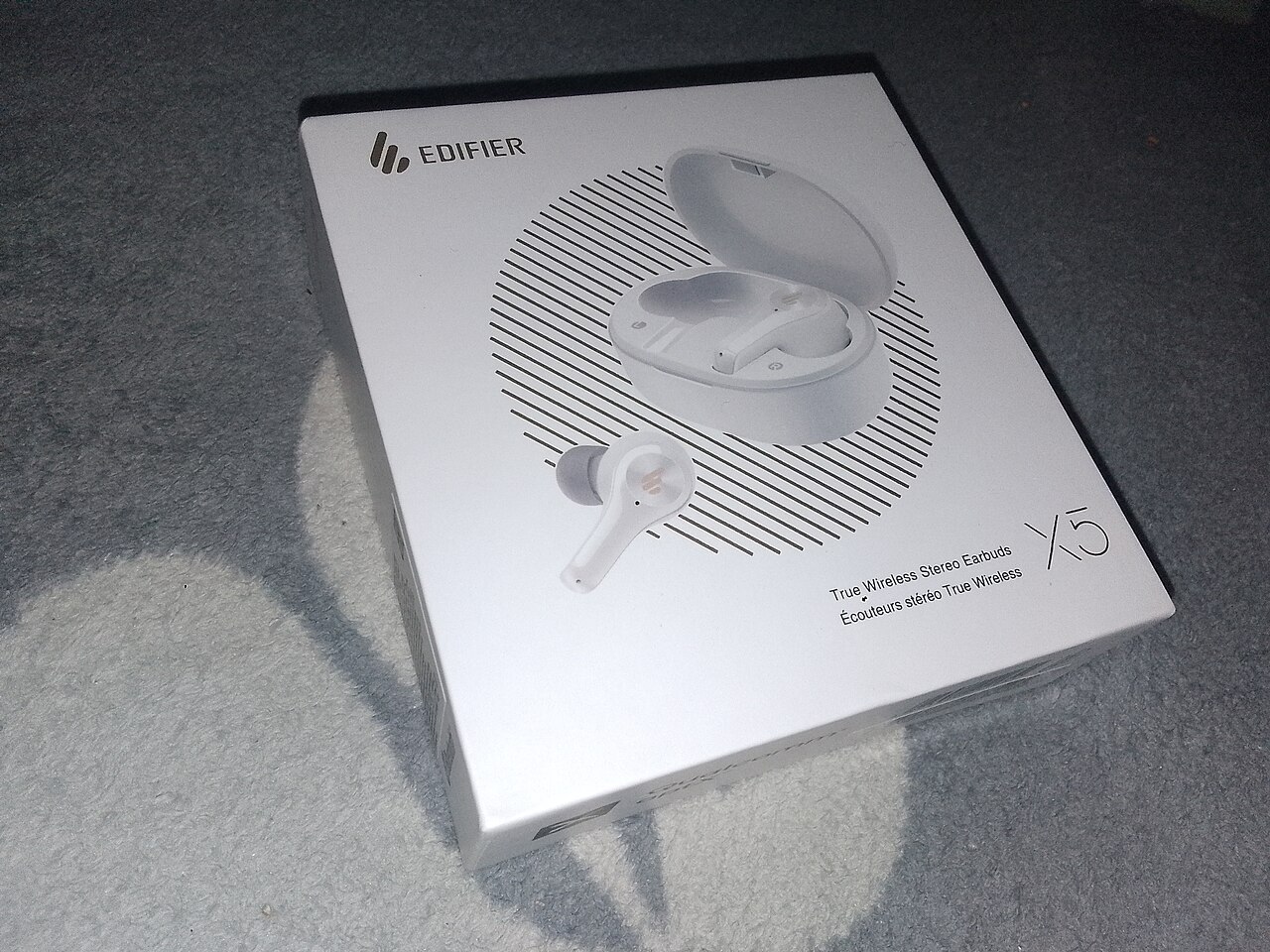
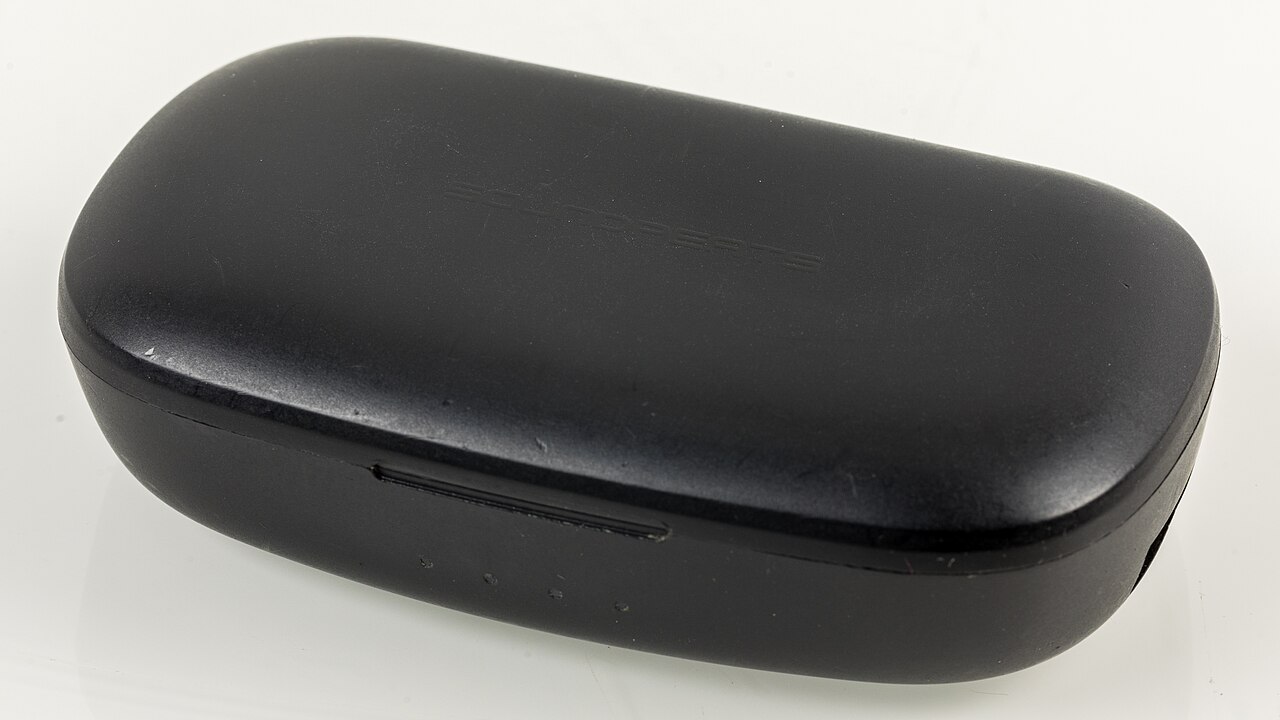
If the headphones say connected but do not appear in the audio-output list, turn Bluetooth off and back on. Recharge the headset, move it closer and disconnect it from another phone or laptop that may have taken control. Then use Settings, Bluetooth devices to remove the headset and pair it again. The names of menus differ between Windows 10 and Windows 11, but the sequence is the same: remove, restart Bluetooth, put the headphones into pairing mode and add them again. Do not reset unrelated network adapters.
Check microphone or call mode
Some older Bluetooth headsets use different audio profiles for music playback and hands-free calls. Sound may become lower-quality or appear to disappear when an app activates the microphone. Close meeting and voice-chat apps, try playing music and check which output device Windows selected. If the headset offers separate Stereo and Hands-Free entries, choose the stereo playback entry for listening. The exact options depend on headset hardware and Windows version. Do not disable a microphone you need for calls without testing it first.
Restart and update carefully
Restart the PC and the headset. In Device Manager, expand Bluetooth and use Update driver for the Bluetooth adapter, then check the headset manufacturer’s support page if the problem persists. Install Windows updates when supported for your version. Avoid anonymous driver-updater websites and do not delete system drivers simply because the first attempt failed. Microsoft notes that Windows 10 regular support ended in October 2025, so unsupported machines may require an upgrade plan as well as normal troubleshooting.
When to test different hardware
Try the headphones with a phone and try another Bluetooth audio device on the computer. If only one headset fails everywhere, the headset may need service. If several Bluetooth devices fail on one PC, investigate the adapter, interference and operating-system configuration. Also test a wired speaker or headset to distinguish a general Windows audio fault from Bluetooth-specific trouble. Record which test changes the result; that makes subsequent diagnosis faster.
Quick checklist and next reading
A practical order is: output selection, volume, charging, reconnection, competing devices, app call mode, then drivers and updates. Only after these checks should you consider reinstalling Bluetooth components or replacing equipment. Related reading on MURDILIMAX: guide to router placement at /guides/wifi-router-placement/ and ways to review browser permissions at /guides/review-browser-permissions/. Those topics will not repair headset hardware but can help keep a Windows setup better organized.
Information for general education. Check device specifications and manufacturer instructions before changing hardware.
Share this article