Identify the exact motherboard and current processor
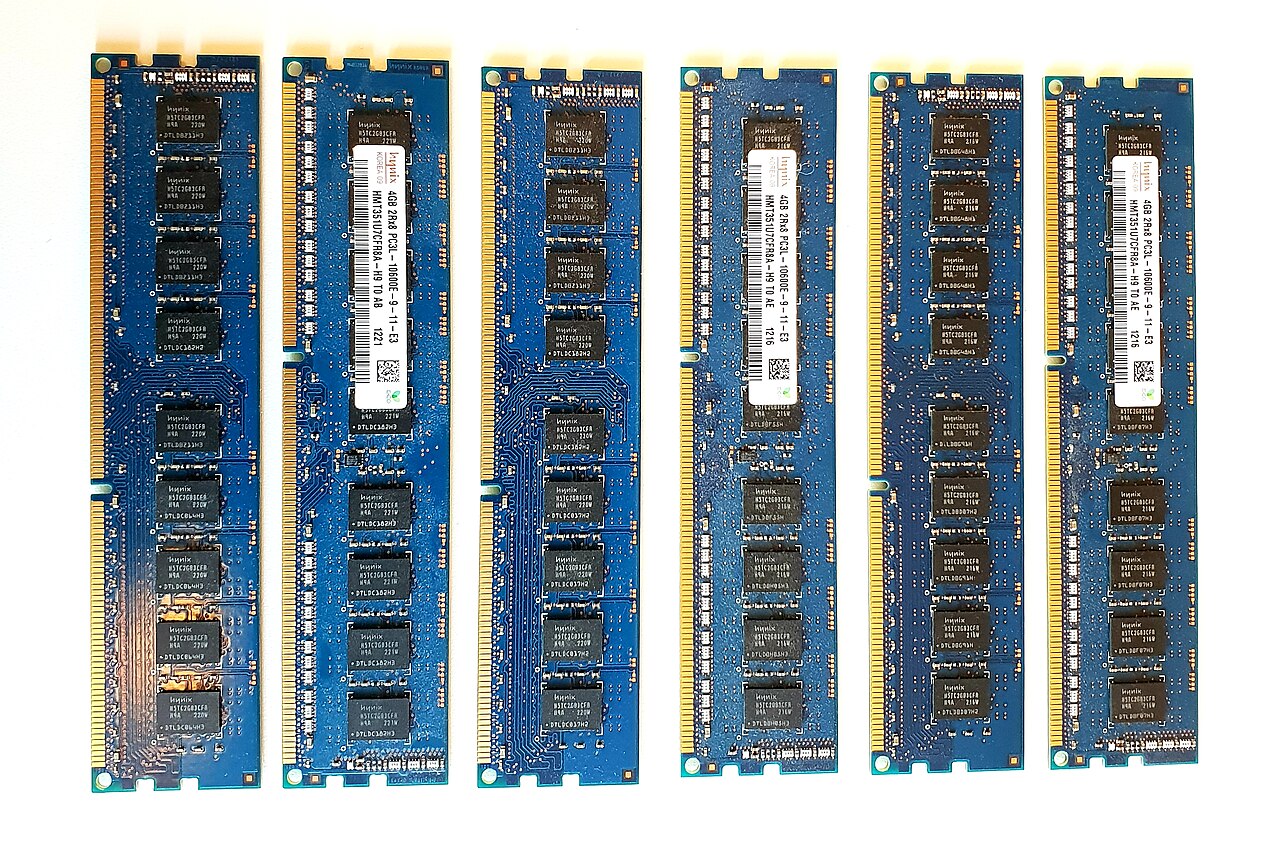
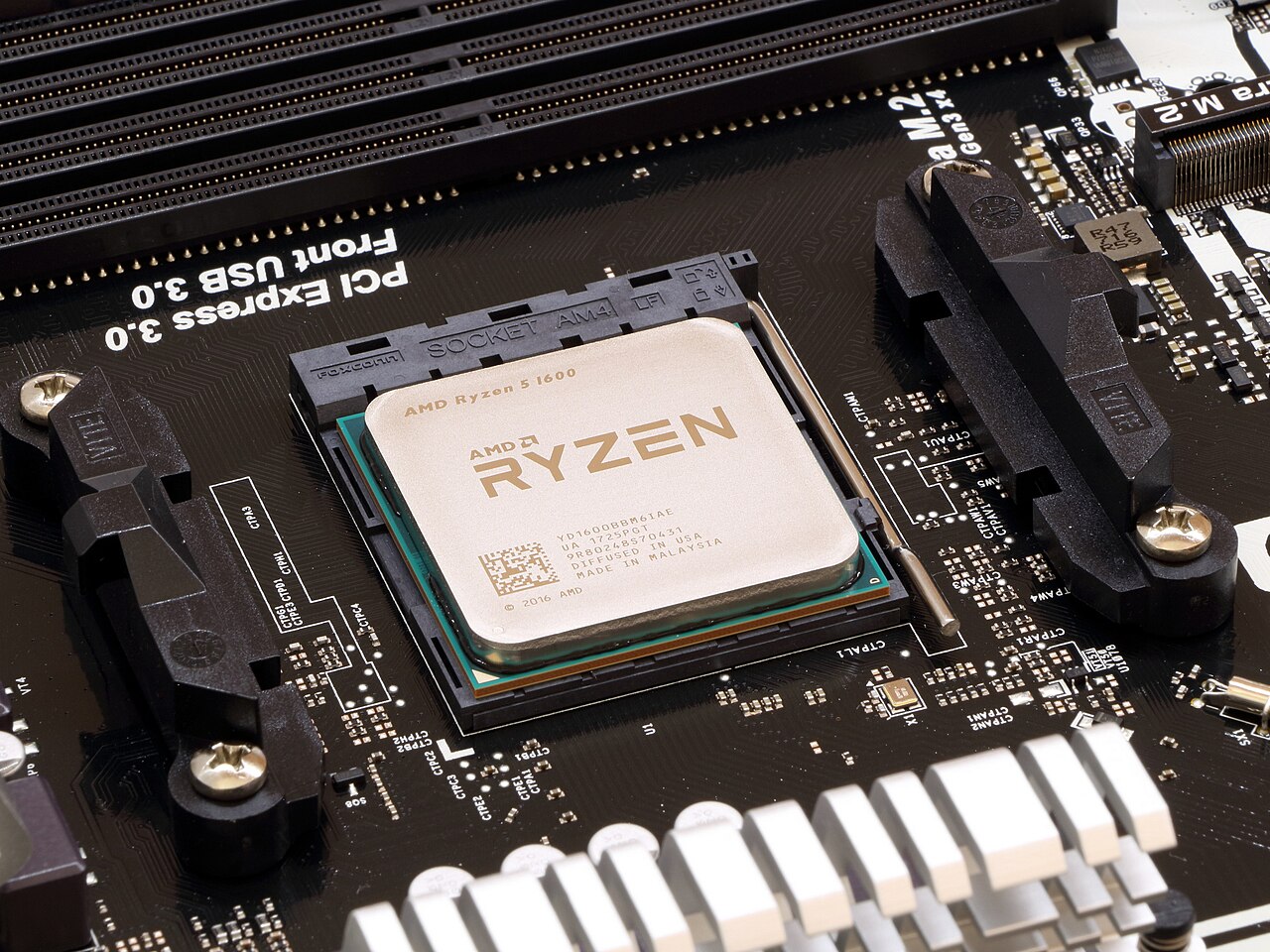
Start with the motherboard model and revision, not the CPU you want to buy. In Windows, open System Information to note the baseboard manufacturer, product and BIOS version. Check the board itself or its box if the revision is not clear. Record your current Ryzen processor, RAM type and whether you already have an SSD. A desktop AM4 board is not automatically compatible with every AM4 chip, even if the processor fits in the socket.
Verify the official CPU support list and BIOS requirement
Open the support page for your precise motherboard model. Find its CPU support or QVL list and check that the desired processor is explicitly supported, including the minimum BIOS version. AMD lists Ryzen 5000 compatibility for the B450 chipset, but individual board support and required firmware still vary. If a BIOS update is necessary, read the manufacturer instructions before buying; a newer BIOS may change support for some older processors. Never assume that a chipset table alone guarantees compatibility.
Prepare a safe upgrade before opening the case
Back up important files and verify that you can open the backup. If disk encryption is enabled, save the BitLocker recovery key somewhere separate from the computer before changing firmware. Download BIOS only from the board manufacturer, use the exact revision, and do not interrupt the update. Some boards offer a USB flashback function, while others need a currently supported CPU to boot and flash. If unsure about firmware flashing or electrical safety, seek hands-on help.
Check the cooler, power and installation steps
Make sure your CPU cooler supports the replacement processor and that the case has adequate airflow. Have suitable thermal paste available if the cooler is being removed. Shut the computer down, disconnect power and follow the board and cooler manuals for safe installation. Do not force pins or connectors. After mounting, reconnect the CPU fan, verify its operation and enter BIOS to confirm that the new processor and memory are detected before starting intensive applications.
Test stability and decide whether the expense is worthwhile
After the first successful boot, check operating-system updates, idle and sustained CPU temperatures, fan behavior and stability under a normal workload. Compare the expected improvement against the total cost of the CPU, cooler and any repair risk. An SSD often makes an older everyday PC feel much more responsive; extra RAM only helps when memory is actually the bottleneck. If your usage needs a new socket, DDR5 or major expansion features, compare a full platform upgrade instead.
Information for general education. Check device specifications and manufacturer instructions before changing hardware.
Share this article