Start with the USB port and another computer
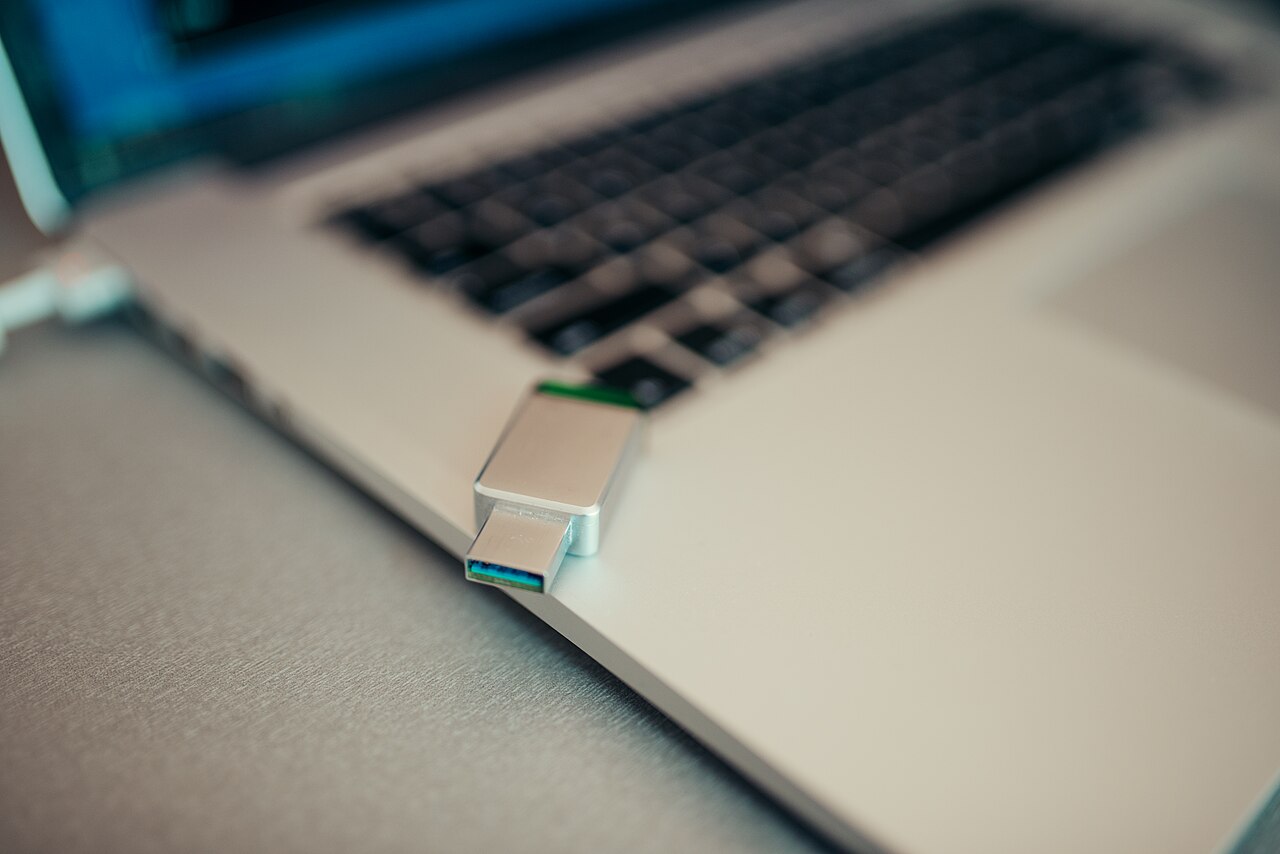
Unplug the drive only after Windows finishes any file operation. Try a different USB port directly on the computer, not a hub. If possible, test it on another trusted PC and try a second known-good USB stick in the original port. These comparisons separate a faulty flash drive from a damaged port or an unstable hub. If the connector is bent, unusually hot or physically loose, stop inserting it. If the files are irreplaceable, avoid repeated experiments and consider a professional recovery service before making changes.
Look in Disk Management before changing anything
Right-click Start and choose Disk Management, or press Windows+R and enter diskmgmt.msc. Locate the removable drive by its approximate capacity and note the status carefully. A drive can be recognized by Windows even when it is absent from File Explorer. Never assume Disk 0 or the first unfamiliar entry is your USB stick: internal system drives may be shown beside it. If Windows offers to initialize or format a drive containing valuable files, cancel the prompt; those operations are not safe first steps for data recovery.
If the drive has no letter, assign one carefully
A healthy existing partition may appear without a drive letter. Right-click the correct volume and look for Change Drive Letter and Paths, then Add a free letter if the option is available. Microsoft documents this feature, but it should be used only when you have positively identified the removable volume. Do not alter letters assigned to Windows or application disks. If the option is greyed out, the partition may be inaccessible or unallocated; adding a letter will not repair damaged file-system structures.
RAW or unallocated does not mean you must format it
If Disk Management says RAW, Unallocated or Not Initialized, Windows may not recognize the file system or partition layout. The device could also be failing. Formatting, creating a new volume and running destructive partition commands can overwrite information needed for recovery. If you need files on the drive, stop at this point and make a recovery plan. If the drive is new and genuinely empty, follow its manufacturer's setup instructions after confirming that no data needs preserving. Do not trust pop-ups promising a one-click fix.
Check Windows devices without random driver tools
Open Device Manager and inspect Disk drives and Universal Serial Bus controllers for entries that change when you connect the stick. Reconnect once, restart Windows if convenient and use built-in updates from Microsoft or the PC manufacturer's website. A yellow warning icon is a clue, not an instruction to uninstall everything. Avoid downloading unknown 'USB repair' executables. If the drive disappears intermittently or disconnects while copying files, suspect a physical connection or power issue and copy important data while it remains accessible.
Safely eject and know when to ask for help
When Windows recognizes the drive and file operations are finished, use Eject or Safely Remove Hardware before unplugging it. If it opens, copy important files to another location before testing large transfers. Persistent detection failures on multiple PCs, audible clicking from external disks or a connector that is damaged require specialized help. To understand storage technology and backup habits, read /guides/ssd-vs-hdd/ and /guides/backup-321/. The key rule is to preserve data first, not to make the error message disappear.
Information for general education. Check device specifications and manufacturer instructions before changing hardware.
Share this article