Why a laptop fan can be loud with no windows open
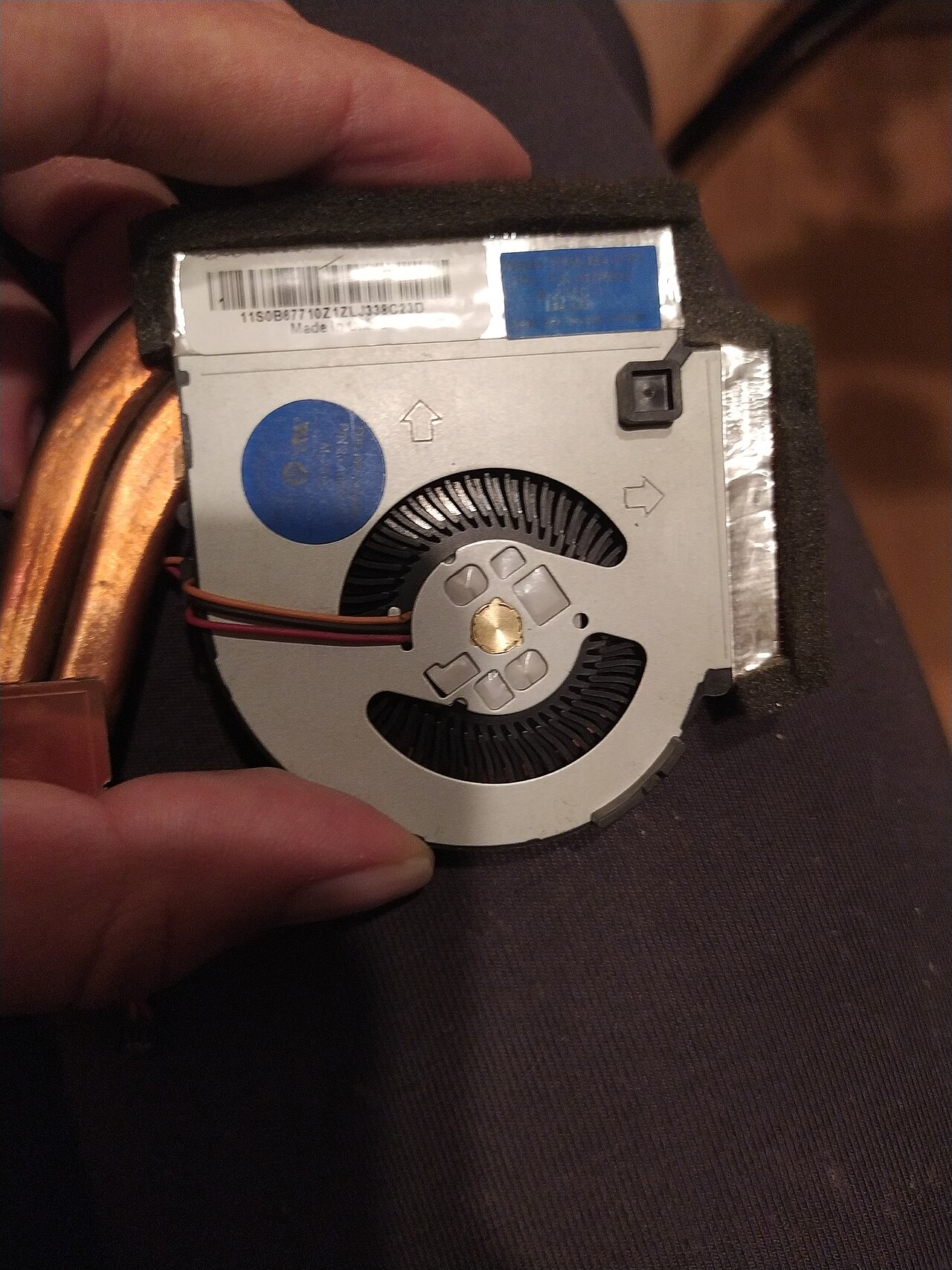
Windows often performs work that is invisible on the desktop: security scans, background updates, cloud synchronization and indexing. A cooling fan responds to heat, not to the number of visible windows. A short burst of fan noise when starting a laptop can be normal. Noise that continues for a long time on a cool, idle computer deserves investigation. Listen for the difference between smooth airflow, a rhythmic ticking noise and scraping; unusual mechanical sounds may point to a failing fan rather than heavy processing.
Use Task Manager to identify background load
Press Ctrl+Shift+Esc to open Task Manager. On the Processes tab, sort by the CPU column and observe which applications use processor time for several minutes. Also check the Performance tab to see overall CPU activity and memory pressure. If Windows Update or security software is actively working, allow a legitimate task to finish instead of interrupting it. Never end unknown system processes just because they have unfamiliar names. If you are unsure about an entry, check its publisher and official documentation first.
Improve airflow without dismantling the laptop
Place the computer on a hard, flat surface and make sure the intake and exhaust vents are not covered by bedding, a blanket or papers. The laptop needs the clearances specified by its manufacturer. Turn it off before any external cleaning and follow the model's maintenance guide. Do not push sharp objects into vents or use a powerful air blast that could damage fan bearings. Dust inside the cooler can restrict airflow, but opening a laptop with a sealed battery or complicated cooling system is not an appropriate first step.
Check power settings, charging and ambient temperature
Powerful performance modes can keep the processor operating at higher clock rates, generating more heat. On supported laptops, try Balanced or a manufacturer-provided quiet thermal mode and see whether the fan settles during ordinary browsing. The fan may also run harder when gaming, charging rapidly or using an external high-resolution display. A hot room and direct sunlight worsen cooling conditions. Do not use a freezer, ice pack or liquid near the electronics to cool them. Compare behavior on a desk in a comfortably cool room.
Updates, malware and manufacturer support
Install operating-system and firmware updates only from Windows Update or the laptop manufacturer's support channel. Avoid random driver installers and BIOS files from forums; firmware mistakes can leave hardware unusable. If an unfamiliar program continuously consumes CPU, run a trusted security scan rather than disabling Windows protections. On Windows 10, regular support ended in October 2025, so checking available security-support options or moving to a supported system matters. A legitimate update may temporarily increase fan activity and should not automatically be treated as malware.
When to call a repair technician
If the fan remains very loud while CPU usage is low, or if the laptop shuts off, overheats, smells burned or makes scraping sounds, stop stressing it and seek service. Cleaning a fan, replacing thermal paste and checking bearings require the correct service procedure for that particular model. Record the laptop's model number, temperatures if your vendor offers a diagnostic tool, and whether the noise occurs on battery or power. Related MURDILIMAX guides: /guides/laptop-overheating-checklist/ and /guides/ssd-vs-hdd/.
Information for general education. Check device specifications and manufacturer instructions before changing hardware.
Share this article