Look for a pattern instead of guessing a temperature
A warm laptop during a game or video export is not necessarily broken. Sudden shutdowns, severe slowdowns, repeated thermal warnings or an unusually loud fan when idle deserve attention. Note whether the problem happens while charging, during a specific application, or only on a bed or sofa. If the case is excessively hot, you notice an unusual smell, or the battery looks swollen, stop using and charging the device and seek qualified service. Do not try to puncture or press on a swollen battery.
Give the air vents room to work
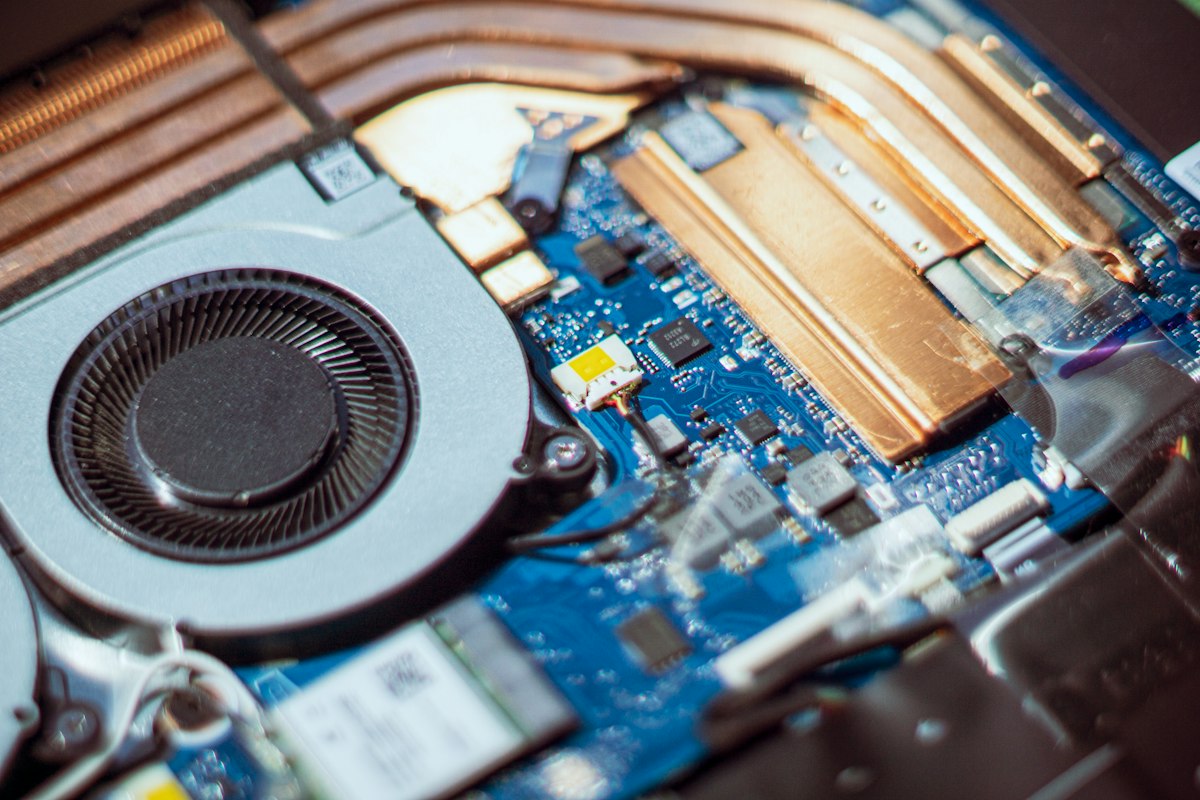
Switch to a firm, flat surface that does not cover the intake and exhaust openings. Soft bedding and cushions can trap heat and block fan vents. Check the manufacturer's diagram to locate the air path, especially on thin laptops where the openings may be underneath or near the hinge. Keep liquids and loose objects away from the equipment. When switching from a blanket to a desk noticeably reduces fan noise, you have already found a useful part of the problem without taking the case apart.
Inspect background load and power settings
Open the operating system's task manager or activity monitor and look for a program using a large share of CPU or graphics resources while you are doing very little. Close unnecessary tasks, allow legitimate updates to finish, and check whether unwanted software is running. An energy-saving or balanced power setting can reduce heat compared with a maximum-performance profile. Do not disable the cooling fan, throttle safety systems or install random utilities promising impossible temperature reductions. Test again with the same application after each adjustment.
Clean only what can be cleaned safely
Shut the laptop down, disconnect power and inspect visible vents for dust. Follow the manufacturer's cleaning instructions; many vendors recommend carefully applied canned air while warning against ordinary vacuum cleaners or forceful blowers that may damage components. Do not insert objects deep into the fan or spray liquids inside. If opening the case may void service terms or you are unsure how the battery is attached, do not disassemble it yourself. Professional cleaning may be appropriate after years of accumulated lint.
Know when software updates or service are the next step
Install appropriate operating-system, driver and firmware updates from the device maker, following its power and backup precautions. Some models provide built-in fan diagnostics; use those before assuming the processor is defective. If the fan grinds, never spins, or the laptop shuts down repeatedly on a hard surface with low workload, arrange servicing. Back up important documents before a repair. A cooling pad can help airflow in some situations but cannot replace a failed fan or fix a damaged heat sink.
Information for general education. Check device specifications and manufacturer instructions before changing hardware.
Share this article