The biggest difference is how drives work
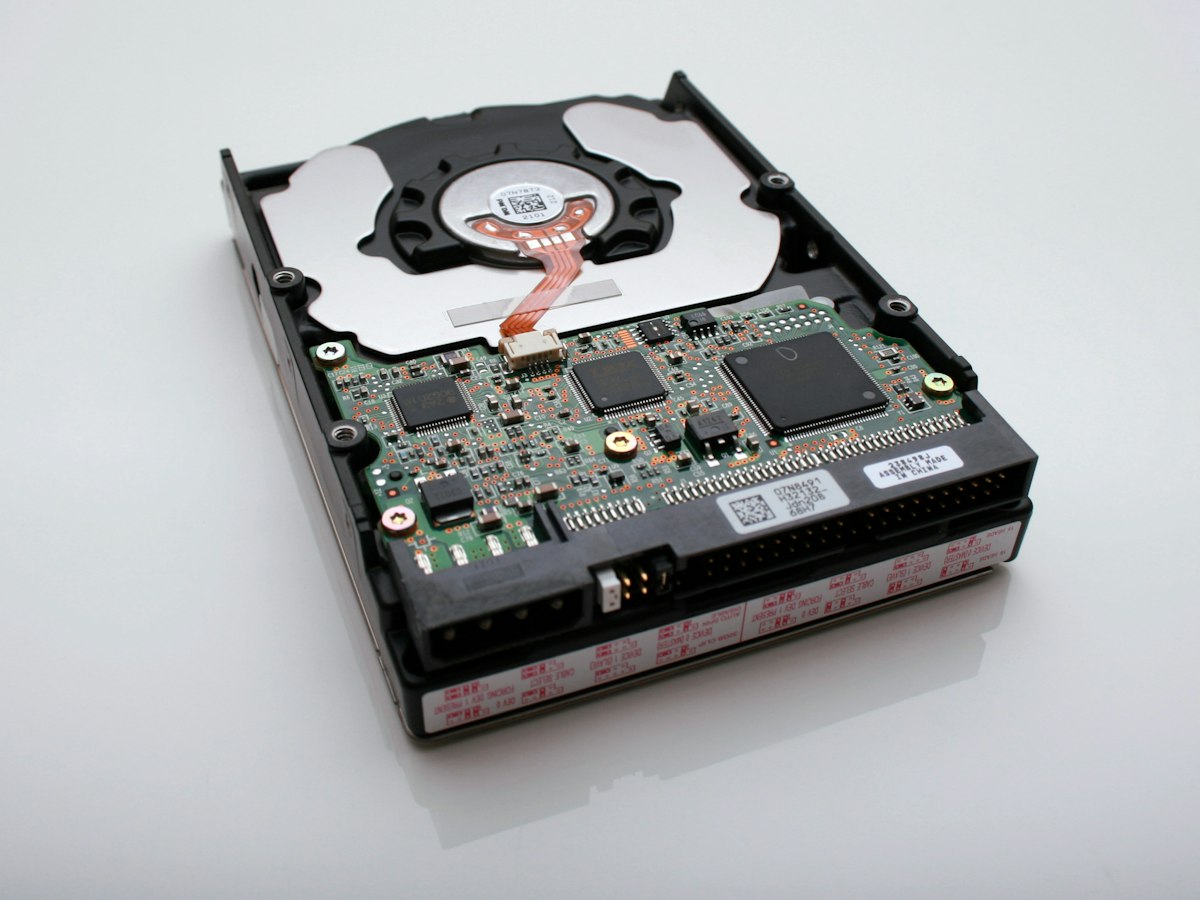
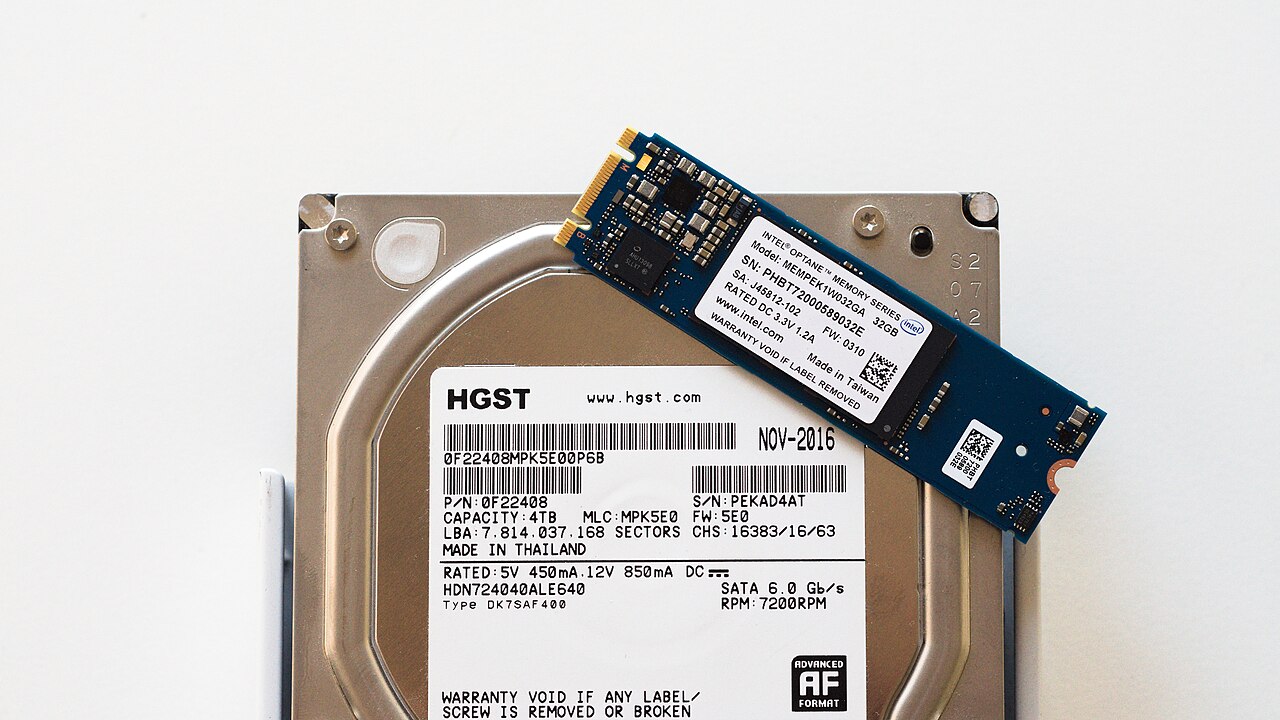
A hard disk drive uses rotating magnetic platters and a moving read head. A solid-state drive uses flash memory and has no spinning disk. That makes an SSD dramatically quicker for many small random operations, such as launching apps and opening the operating system. HDDs remain useful when you need lots of space at a low price per gigabyte. Neither technology should be treated as permanent or failure-proof storage.
For the operating system, an SSD usually wins
If an older computer feels slow when booting or opening applications and currently uses a mechanical hard drive, replacing the system drive with a compatible SSD is often a significant upgrade. Both SATA SSDs and NVMe SSDs are solid-state; NVMe models can offer much higher transfer speed, but they need the right connector and platform support. A fast NVMe drive will not make every web page load faster when the limitation is your internet connection.
Choose capacity and interface before model numbers
Check whether the machine supports a 2.5-inch SATA drive, an M.2 SATA drive, or an M.2 NVMe PCIe drive; an M.2-shaped slot does not always support every drive type. For large video archives or infrequently accessed backups, an HDD can offer better capacity for the money. For games, software, editing projects or a portable working disk, an SSD often feels more responsive. Verify the physical dimensions, available bays and manufacturer documentation.
Think about wear, shock resistance and data protection
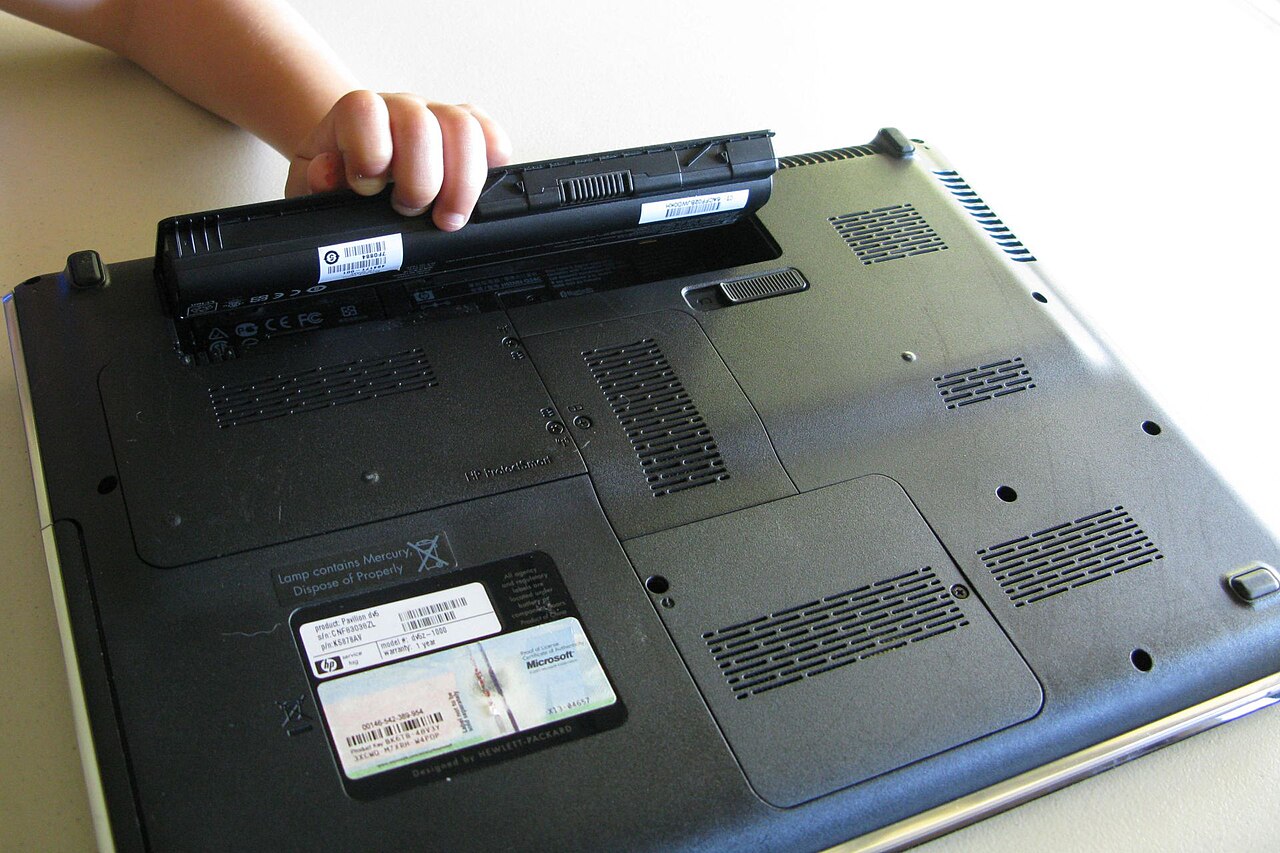
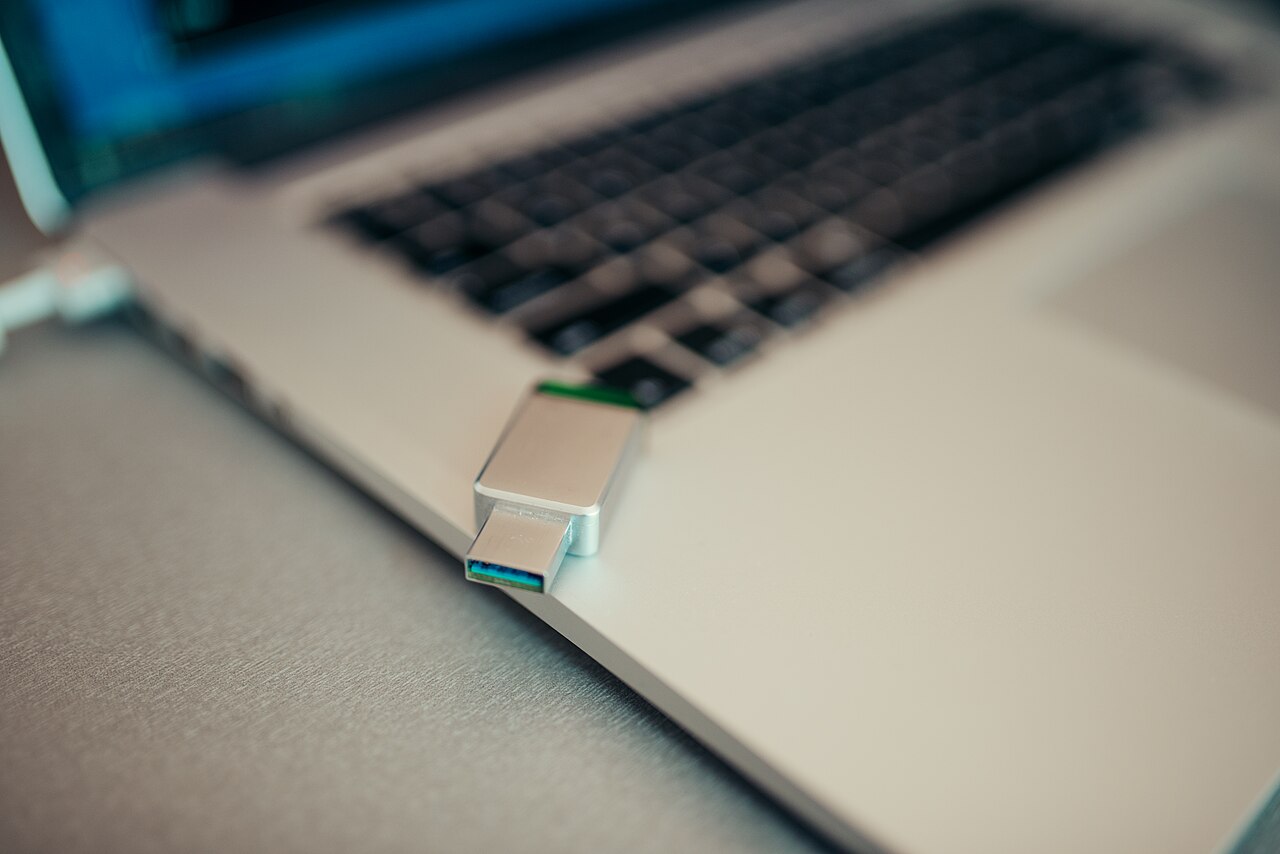
HDDs have moving parts and are more vulnerable to physical shocks while operating, while SSDs generally resist handling shocks better. Both can fail without warning: electronics, firmware and other components can cause loss of data, and deleted files can be difficult to recover. Monitor drive health when practical, use safe eject for external storage and keep several independent copies of irreplaceable files. An SSD is not a substitute for a backup.
A practical setup for different budgets
For most home PCs, a compatible SSD for the operating system and everyday applications is an effective starting point. Add a high-capacity HDD only if you need inexpensive bulk storage, or use an external drive as one part of a backup strategy. Consider warranty, endurance rating, connector support and total cost rather than a single advertised peak speed. After migrating, confirm that important files work before wiping the original drive.
Information for general education. Check device specifications and manufacturer instructions before changing hardware.
Share this article