Fastest method: Windows + Shift + S
For most screenshots, press Windows + Shift + S together. The desktop dims and a small capture toolbar appears. Choose the rectangular option, then drag around the part of the screen you want. Other choices let you capture an individual window, the entire display or a freeform shape. The image is copied to the Windows clipboard, so you can immediately press Ctrl + V in Paint, a document or a chat that accepts pasted images. If a notification appears, click it to open Snipping Tool, crop or annotate the picture, and choose Save. Depending on Windows version and Snipping Tool settings, captures may also be saved automatically, but do not assume that every clipboard screenshot is already a file. This shortcut works in Windows 10 and 11 and needs no third-party app.
Save the full screen automatically with Windows + Print Screen
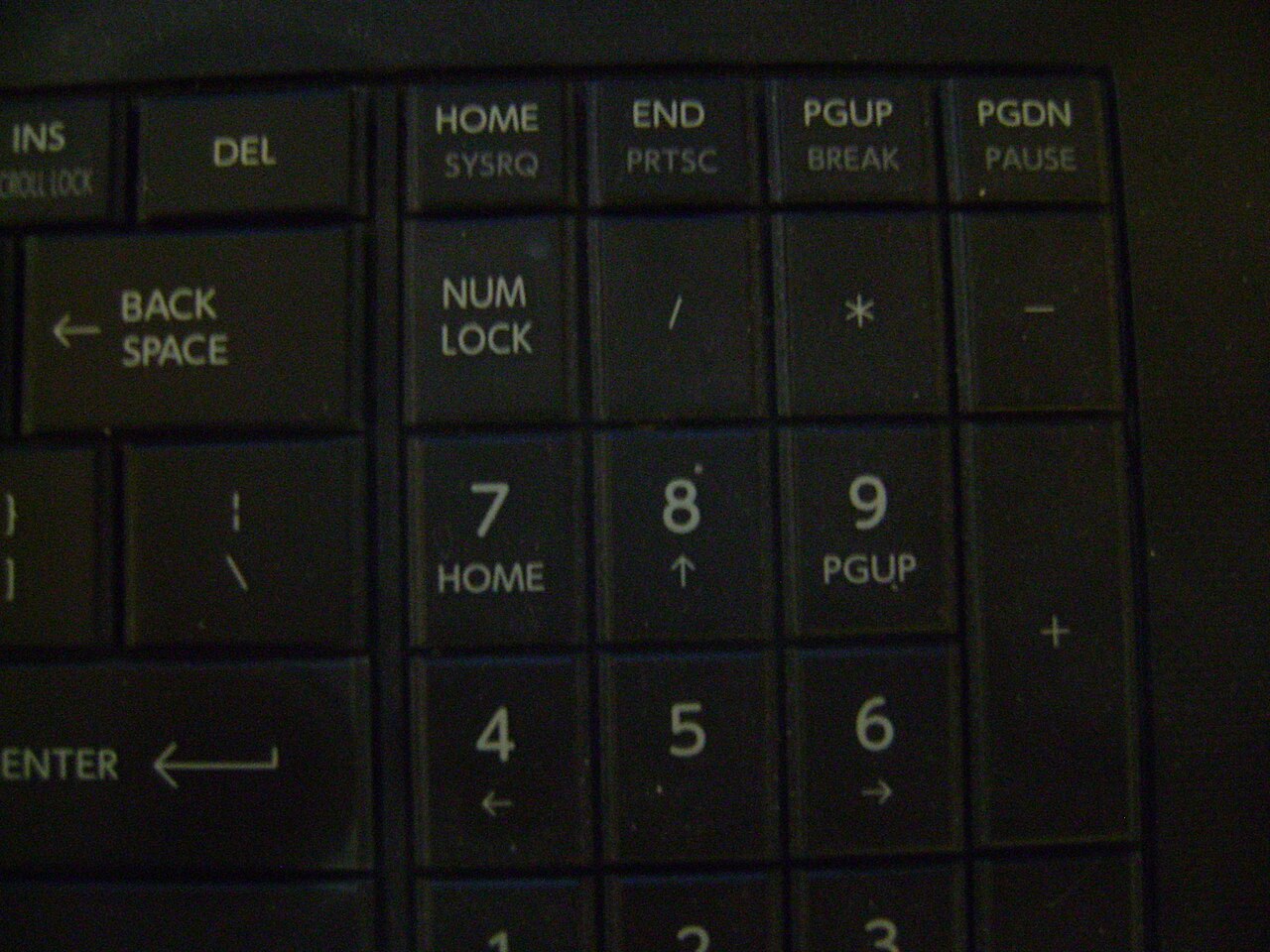
To create a file of the entire screen directly, press Windows + PrtScn (the key may say PrtSc, PrtScn or Print Screen). On a typical installation, the picture is saved in Pictures > Screenshots, also called Изображения > Снимки экрана in Russian Windows. The screen may briefly darken to confirm capture. Open File Explorer and navigate to Pictures, then Screenshots; a cloud backup or redirected Pictures folder can change the exact location. If your laptop shares PrtSc with another key, try holding Fn as well as Windows and PrtSc. Microsoft also documents Windows + Fn + Space on devices without a physical PrtSc key. This method captures the desktop as displayed; check for confidential information before sharing the resulting file.
Copy only the active window with Alt + Print Screen
When you need one application rather than the whole desktop, first click the window so it is active. Press Alt + PrtScn, then open Paint or another image-capable application and use Ctrl + V. This conventional shortcut copies the focused window to the clipboard; it does not necessarily create a screenshot file by itself. Save the pasted image with Ctrl + S and choose PNG or another format offered by your editor. Laptop keyboards sometimes require Alt + Fn + PrtScn. If a popup, dropdown or tooltip disappears while you press the shortcut, use Snipping Tool's delayed capture described below. Capturing one window reduces clutter and can avoid accidentally exposing private notifications or other open applications.
Use Snipping Tool for a delayed screenshot or annotations
Open Start, type Snipping Tool, and launch the built-in Windows application. Select New to take a screenshot. In the mode menu, choose a rectangle, window, freeform selection or full screen. If you must capture an open menu or tooltip that vanishes when clicked, choose Delay and select a few seconds before starting the snip; open the target menu during the countdown. Once the capture appears, use the crop, pen, highlighter or shapes options supported by your version, then select Save or press Ctrl + S. Microsoft's current help also describes screen recording in Snipping Tool, but a video recording is not the same as a still screenshot. Features and button names can vary with the installed Windows and Snipping Tool updates.
Print Screen does something different or nothing happens
On some Windows 11 configurations, pressing PrtSc opens Snipping Tool instead of silently copying the whole screen. Microsoft explains that this behavior can be adjusted under Start > Settings > Accessibility > Keyboard, using the option to open screen snipping with Print Screen. If your key seems dead, first try Windows + Shift + S, which does not depend on a dedicated Print Screen key. Then look for a small PrtSc label shared with another laptop key and test it with Fn. Remember that a clipboard capture may show no file or visible confirmation until you paste it with Ctrl + V. If it still fails, check for keyboard remapping, special-function-key modes or remote desktop restrictions before reinstalling drivers. Avoid downloading unknown screenshot programs to solve a shortcut problem.
Where screenshots go and how to share them safely
Screenshots produced with Windows + PrtScn are normally stored in Pictures > Screenshots, whereas Alt + PrtScn and Windows + Shift + S commonly start by copying an image to the clipboard. Snipping Tool may offer its own automatic saving behavior, depending on preferences. Search File Explorer for Screenshots or recent PNG files if the expected folder is empty. Before sending a screenshot to support staff or posting online, examine the entire image for passwords, addresses, account numbers, browser tabs and private messages. Crop or cover sensitive information in a local editor and inspect the final exported image. For smaller uploads, try /tools/compress-images/; to change PNG, JPG or WebP formats, use /tools/image-converter/. If storage is low, see /guides/free-up-windows-storage/.
Information for general education. Check device specifications and manufacturer instructions before changing hardware.
Share this article