Prepare the cable and unlock your phone
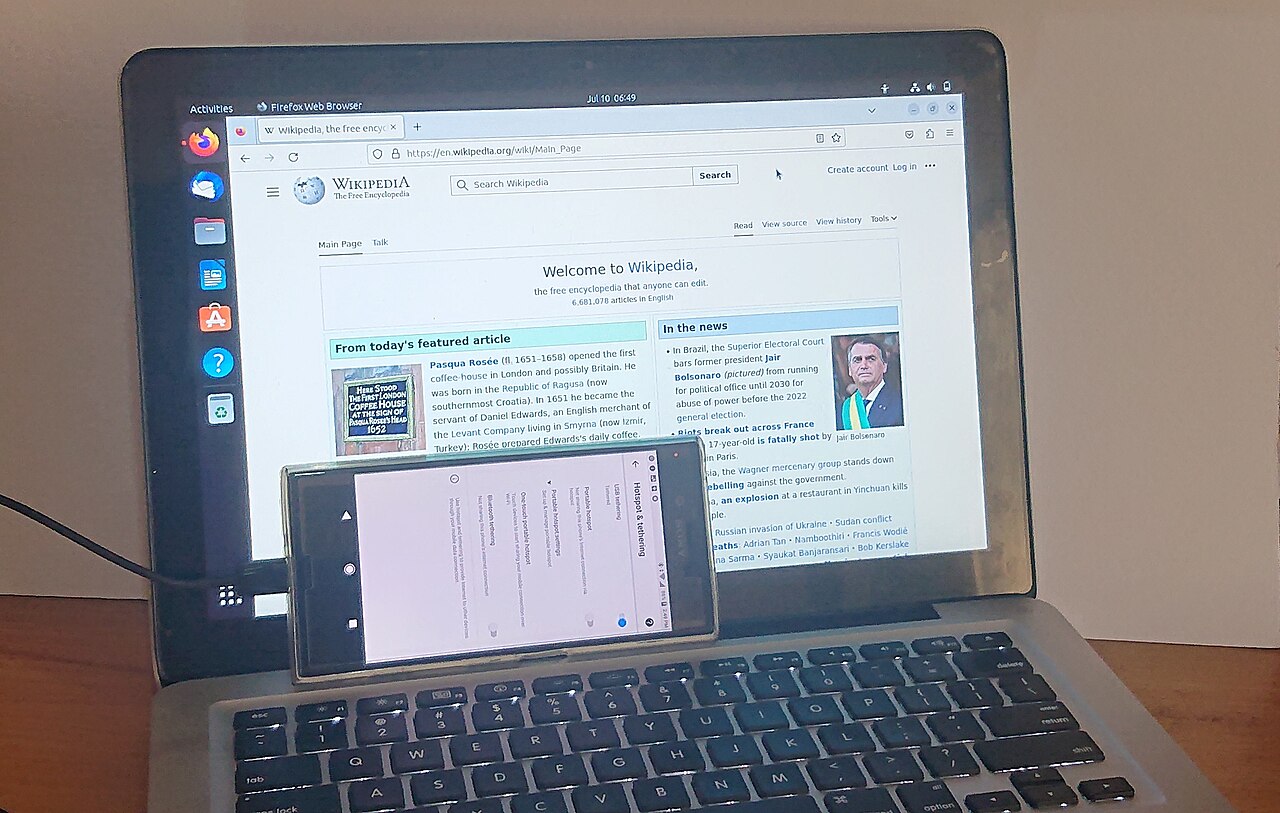
Use a USB cable that supports data transfer, not only charging. Unlock the phone, connect it directly to the Windows computer and watch for an Android notification such as 'Charging this device via USB.' Tap it and choose File transfer or a comparable option. The wording varies between manufacturers and Android versions. Windows may show the phone as a portable device in File Explorer. If you see only a charging symbol, do not assume your photos are lost; the USB mode or cable is often the issue.
Find DCIM, Camera and other picture folders
Open File Explorer, This PC, your phone and its internal storage. Camera photographs are commonly inside DCIM/Camera, while screenshots, downloads and photos saved by apps may be in Pictures, Download or app-specific folders. Select the files you actually want and copy them into a new dated folder on the PC. For a large archive, transfer smaller batches so a loose cable or sleep mode does not interrupt everything. Keep the phone unlocked when its manufacturer requires it for access.
Copy first, verify second, delete much later
Use Copy and Paste rather than Cut or Move when transferring important memories. After the transfer finishes, open several photographs and videos on the computer, compare file counts and check that full-size originals transferred rather than tiny previews. Videos may use formats that need supported codecs; a playback problem does not always mean the copy failed. Back up the new folder to another disk or reputable cloud storage before considering deletion from the phone. An isolated copy on one PC is not a complete backup.
Try Quick Share when a cable is inconvenient
Google's Quick Share can move images and documents between compatible nearby Android and Windows devices. Install the official Quick Share application for Windows, enable Bluetooth and a supported network connection, set the receiver's visibility, select photographs on Android and share to the PC. Confirm the receiver and matching PIN when prompted. Some Samsung PCs use Samsung's own Quick Share app. Verify the Windows system requirements and local network conditions rather than installing random third-party file-transfer utilities.
What if Windows does not detect the Android phone?
Try a different data-capable cable and USB port. Restart the phone and computer, reconnect with the phone unlocked and look again at the USB mode notification. Charging-only cables cannot carry your photos. If another PC recognizes the device, investigate Windows drivers or ports; if no PC recognizes it, the cable or handset port may be at fault. On the Android device, remember that some private folders are inaccessible by normal file transfer. Do not unlock a bootloader or factory-reset a phone simply to retrieve pictures.
Cloud sync is an alternative, not the same as a local copy
Google Photos and other cloud services may already hold backed-up versions of your photos. Check which account is active, whether original-quality backups are enabled and whether the images are truly uploaded before removing anything. Cloud synchronization and local USB copies have different storage, privacy and billing implications. For household photo organization see /guides/organize-family-photo-archive/, and for storage troubleshooting see /guides/phone-storage-full-safe-cleanup/. Keep personal photo folders private unless you intentionally want to share them.
A general educational overview, not a substitute for professional guidance. Check current local rules and trusted primary sources before making consequential decisions.
Share this article