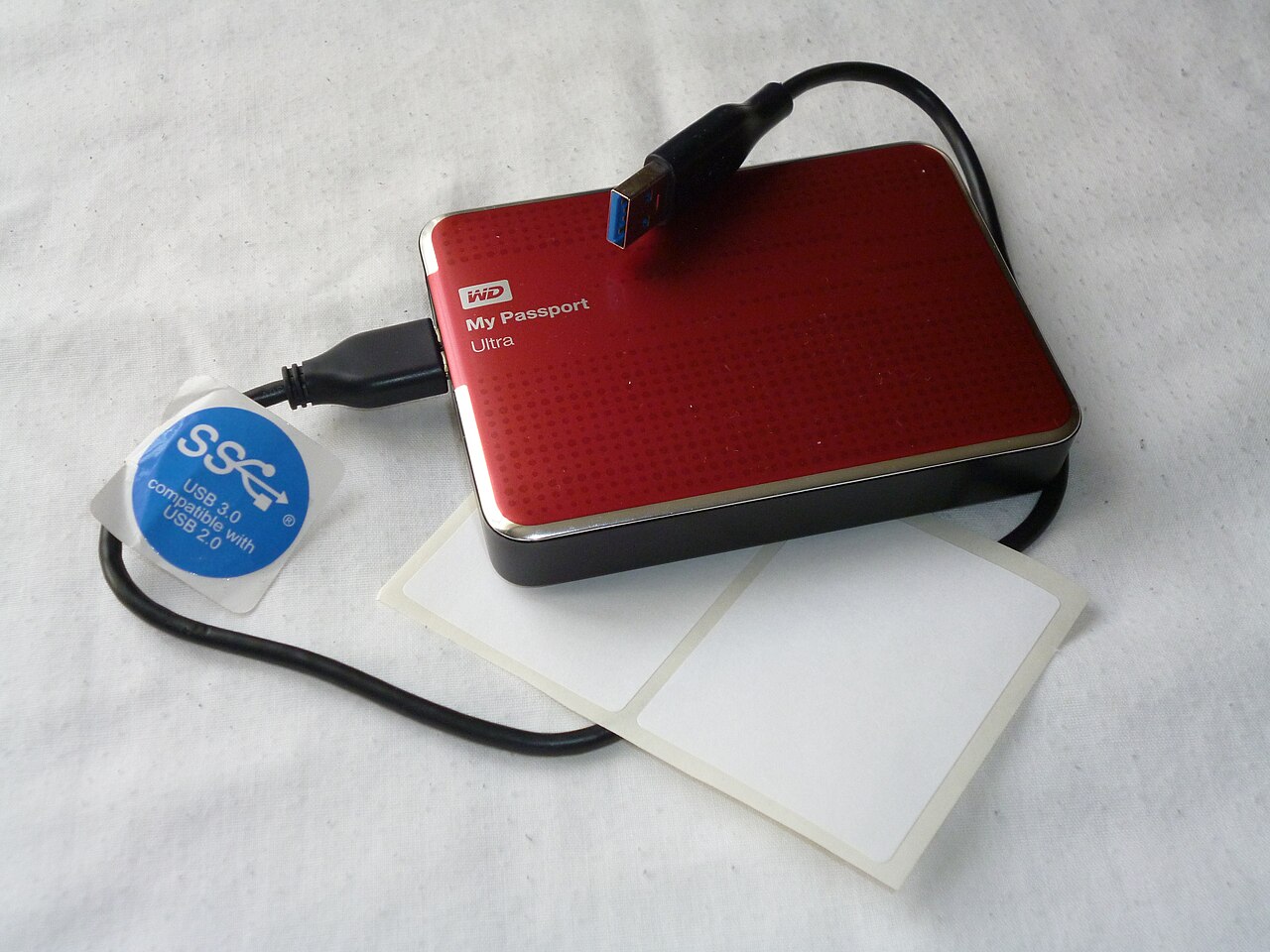
Identify which storage is full
A warning may concern the phone’s internal storage or the space in a cloud account. Buying a cloud plan does not enlarge the built-in drive. Open storage settings and identify the biggest category: photos, apps, downloaded video or documents. Clearing working memory is not the same as making room for files.
Verify photo copies before deleting
Open several important photos and videos from your backup on another device. Check that you are using the correct account and that uploads have finished. Synchronisation and an independent backup are different: deleting from a synchronised library may propagate to other devices. Do not empty the trash until you have verified that the files you need are safe.
What to do on an iPhone
Go to Settings → General → iPhone Storage and review the recommendations. Offloading an unused app keeps its documents and data; deleting it has different consequences. If you use iCloud Photos, enable storage optimisation: full-resolution originals remain in iCloud while the phone can retain smaller versions. This requires enough iCloud space, and the saving may not appear immediately.
What to do on Android
Open storage settings and examine the largest categories; menu names vary by manufacturer. In Google Photos, Free up space on this device removes local copies that have already been backed up. Verify that backup is complete first. Once local copies are removed, those photos may be unavailable offline or in the phone’s ordinary gallery application.
Which files to review next
Check offline films, podcasts, music and the downloads folder. Remove downloaded copies through the app that created them, reading the confirmation carefully. On Android, clearing an app’s cache removes temporary data; clearing its storage can remove its app data entirely. These are different commands. Start with material you can download again, rather than the only copy of a family video.
Check the result after each change
Return to storage settings after making one change. If photos dominate the chart, removing a few small apps will have little effect. Do not delete unfamiliar system folders or make a factory reset your first step. Regularly reviewing downloads and checking your backups is more dependable than deleting random files whenever a low-storage warning appears.
A general educational overview, not a substitute for professional guidance. Check current local rules and trusted primary sources before making consequential decisions.
Share this article